Help center
How PayTravel works, in plain words.
Guides
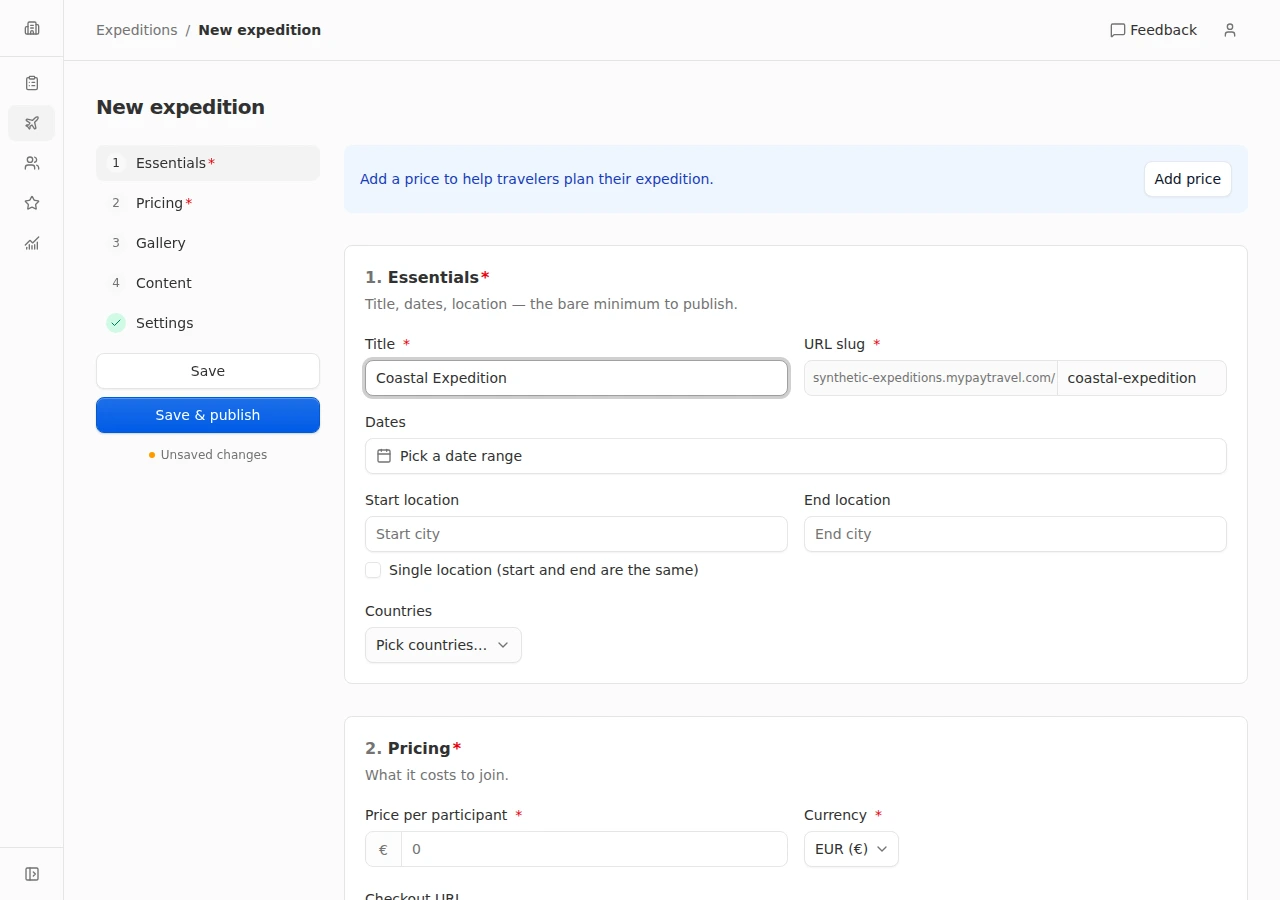
Publish your first trip
Prepare your departure, check its public page, and start accepting applications.
4 steps
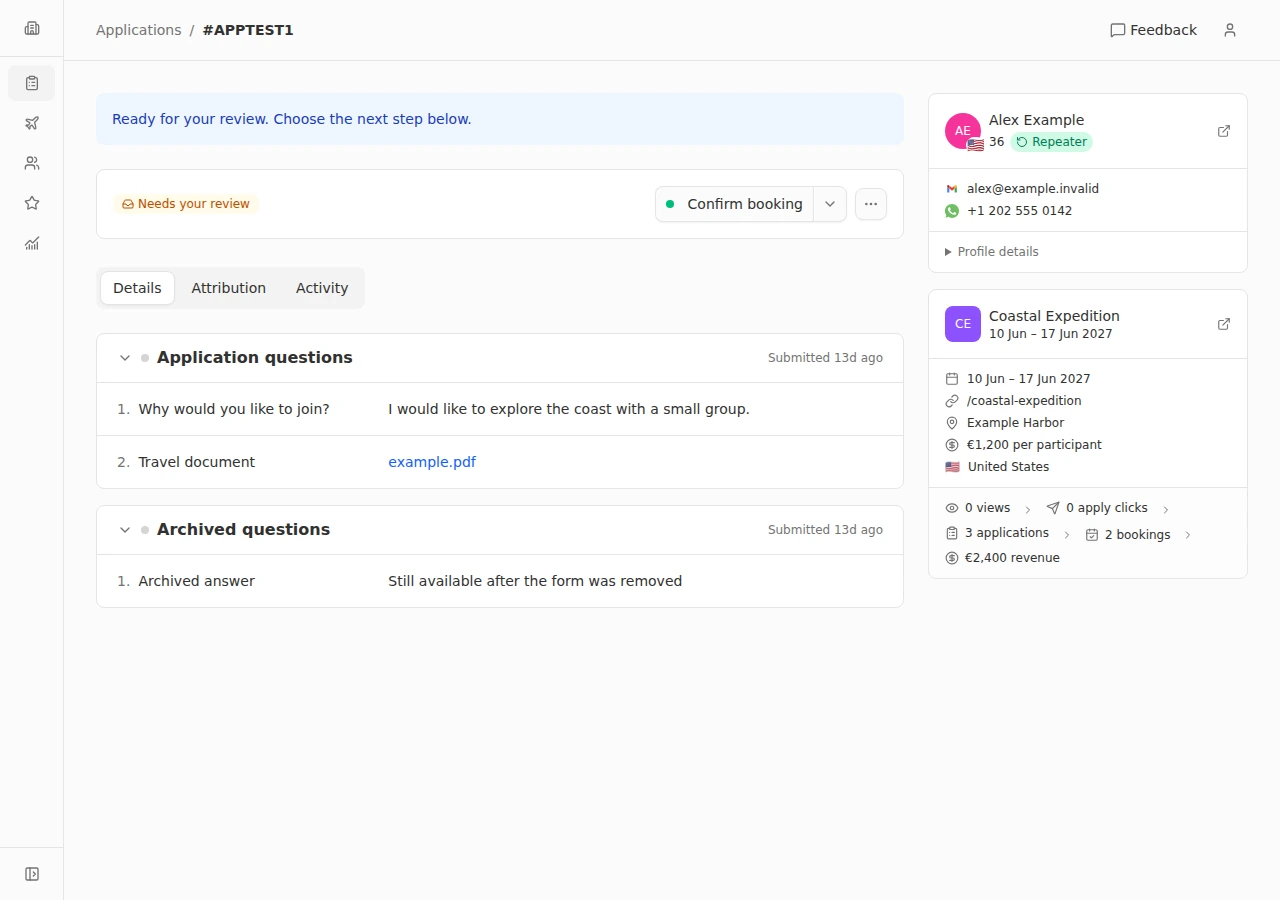
Review a traveler’s application
Read the answers, choose the next step, and review what the traveler will receive.
4 steps
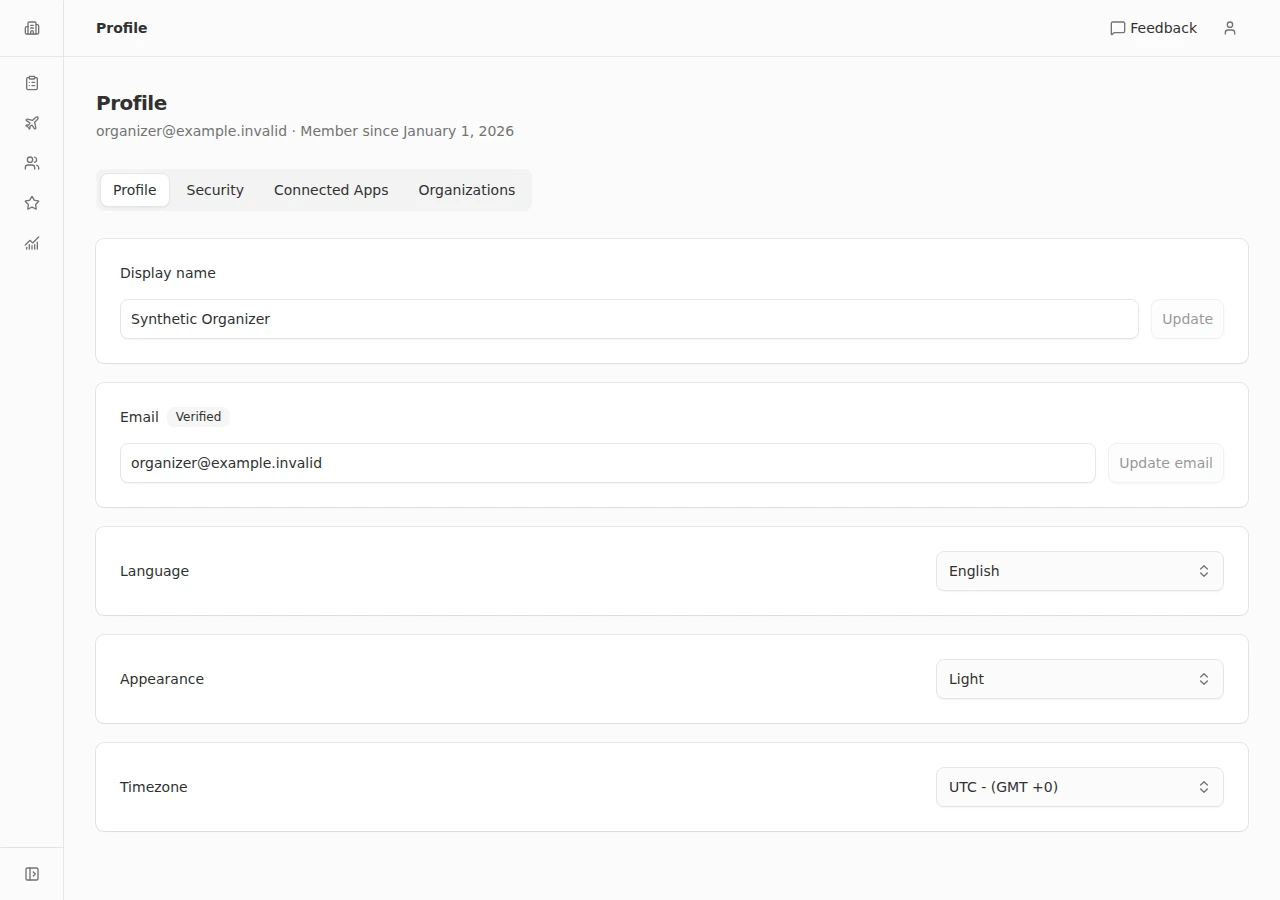
Make the dashboard yours
Choose the language, appearance and time zone for your account.
4 steps
Questions
Trips and publishing
How do I publish a trip?
Open Trips and create a trip. Add a title, URL slug, start and end dates, a price and currency, and at least one gallery image. Choose Save & publish when it is ready. You can save a hidden trip first while you finish its details.
How do I pause applications or hide a trip?
Edit the trip and open Settings. Turn off Open for applications to stop new applications while keeping its public page. Turn on Hidden from public to make the page unavailable. Archive is available in the trip action menu; unarchiving restores the trip as hidden until you publish it again.
Can I reuse a trip for another departure?
Open the trip action menu and choose Duplicate. The copy starts hidden and closed for applications. Review its title, URL, dates, price, checkout link, and content before publishing and opening applications.
Where do I add an itinerary and trip FAQs?
Edit the trip and open Content. You can add a description, a day-by-day itinerary, what is included, what is not included, and FAQs. Use the public preview from the trip details to review what travelers see, then copy the public link to share it.
How do I change the cover image?
Edit the trip and open Gallery. Upload images or paste an image URL, then reorder them so your preferred cover is first. A gallery supports up to 20 images.
Applications and bookings
How do I move an application forward?
Open an application and review the traveler’s answers. The next action depends on its current stage: Next phase, Ready to book, or Confirm booking. Review the confirmation and notification options before applying the change. When a traveler submits more phase answers, the application returns for your review.
Where can I read answers and uploaded files?
Open the application and select Details to read its form responses. Responses are grouped by phase, and file answers include links to the uploaded files. If no responses appear yet, the traveler has not submitted answers for that section.
Can I update several applications together?
Select applications in the Applications list. Use Confirm bookings or More actions to move them to the next phase, mark them ready to book, or mark them not selected. Review the selected count and notification options. Check the result afterward because some applications may be skipped or fail to update.
Can I reconsider a traveler who was not selected?
Open the application marked Not selected and choose Reactivate from its action menu. Confirm to return it to the review queue, where you can decide the next step again.
What does Confirm booking do?
Confirm booking adds the traveler as a confirmed participant and marks the booking paid in PayTravel. It does not collect a payment. Verify the traveler’s payment separately before confirming; the booking then appears in Bookings.
How do I cancel a confirmed booking?
Open the booking action menu, choose Cancel booking, and review the notification options before confirming. The traveler is removed as a confirmed participant and the application becomes Cancelled. Any refund must be handled separately.
What if the application says the traveler’s email or number already exists?
Ask the traveler to use the login link on the application page and continue with their existing account. Once logged in, they can return to the trip’s application page or open their profile to see an existing application and its next step.
Where do travelers complete their next step?
Travelers log in to their profile on your booking site. Continue opens the trip application page when more phase questions are available. Pay now opens the trip’s checkout link when the application is ready to book. An application awaiting your review will not have the same next-step action.
Travelers and reviews
Can I add an existing traveler to a trip?
Use Add traveler from a trip, or Add to trip from a customer’s profile. Select the existing customer or trip and review the confirmation. This creates a confirmed booking marked paid, so first verify that this matches the traveler’s booking and payment.
Where can I see a traveler’s history?
Open Customers and select the traveler. Their profile brings together bookings, open applications, applications not selected, reviews, journey, achievements, and personal details. You can also open their profile from an application or booking.
What do VIP, Blocked, and repeat customer mean?
VIP and Blocked are labels you manage from a customer’s action menu. Blocking stops the traveler from submitting new applications on your booking site; you can unblock the customer later. Repeat customer is derived from confirmed participation history. A blocked label takes priority over VIP in the dashboard.
Why is a traveler’s review not public yet?
New reviews start as Pending. Open Reviews and approve a review to make it eligible for the public trip page. Rejected and hidden reviews are not public. Show again moves a hidden review back to Pending, so it still needs approval.
When can travelers leave a review?
Travelers can log in to their profile and review an eligible past trip after it has finished. Only one review per traveler and trip is allowed. Submitted reviews wait for your approval before appearing publicly.
Payments and payouts
How do I manage my PayTravel subscription?
An organization owner can open Settings → Billing to see subscription status and renewal information. Choose Manage subscription to open Stripe, or Update payment method if a payment is past due. If the organization needs activation, use Activate PayTravel. Subscription billing is separate from traveler payments.
Where should I check a payout or payment issue?
Check the payment provider and account used by the trip’s Checkout URL. If the link uses Stripe, review payment and payout details in the organizer’s Stripe account. PayTravel Billing manages your software subscription separately. Contact support with the organization, trip and payment reference if you need help; leave out card details, passwords and secret keys.
Workspace and team
How do I switch or create an organization?
Open the organization menu at the top of the sidebar and choose an organization, or select Create organization. On mobile, open the navigation menu first. Check the selected organization before editing trips or travelers.
Where can I manage my team and invitations?
As an organization owner, open the user menu, choose Settings, then Team to manage members and invitations. To see invitations sent to you, open the user menu → Profile → Organizations.
Why can’t I see Settings or some dashboard sections?
Dashboard access depends on your organization role. Settings and billing management are available to owners. Booking Managers work with applications, customers, reviews and analytics; Trip Planners work with trips. Ask an owner to check your role if the section you need is missing.
How do I change my booking site’s logo and colors?
An owner can open Settings → Brand to set the logo image URL, avatar or icon URL, primary color and background color. Use the previews to check your images, then save the changes. These brand settings are used on your booking site and emails.
How do I update the contact details travelers see?
Open Settings → General to change your organization’s support email. Use Contact & social for phone, WhatsApp, website and social links, including the switch for the booking site’s WhatsApp button. These are your traveler-facing contact details, separate from PayTravel support at support@paytravel.co.
How do I connect my own booking domain?
As an owner, open Settings → Domain, enter a hostname such as bookings.yourcompany.com without https://, and save. Follow the DNS records shown on the page and check the domain status there. Once active, share links and emails use your custom domain, and the default booking address redirects to it.
Account and profile
How do I change my name or login email?
Open the user menu and choose Profile. Update your name or request an email change. For an email change, confirm it from your current inbox, then verify the link sent to the new address. Your email stays unchanged until both steps are complete. If your current email is unverified, log in with it again first.
How do I log in if I don’t have a password?
The login page supports Google and email login. Enter your email and follow the login link or code provided in the email. If it expires, request a new email when the resend option is available. Check that you are using the email address invited to your organization.
Why does the Security page ask me to log in again?
Security settings can require a recent login. Open the user menu → Profile → Security and use Log in again if prompted. After logging in, you return to Security. If the page reports a loading error instead, use Try Again.
Can I change the dashboard language, theme or time zone?
Open the user menu and choose Profile to select English or Spanish, a light, dark or system theme, and your time zone. Each selection saves when you change it. Your dashboard language is a personal preference; the organization’s default language is a separate setting under Settings → General.
Where can I review or disconnect apps connected to my account?
Open the user menu → Profile → Connected Apps to see connected apps and their permissions. Choose Disconnect on an app and confirm to remove its connection. If the list cannot load, use Try Again before assuming there are no connections.
Analytics and tracking
How do I explore my trip and traffic analytics?
Open Analytics and choose a date range. Select a source or trip row to filter the report, or a day on the chart to explore that day. Review source, trip and audience breakdowns to understand where applications and bookings come from. Remove active filters to return to the wider view.
Is estimated revenue the amount I have been paid?
No. Analytics values bookings at the trip’s list price to calculate estimated revenue. It is not a record of collected payments or bank payouts. Use the organizer’s payment account to check actual payment and payout details.
Why does a filtered analytics report show a 90-day limit?
Analytics filtered by source or trip can cover up to 90 days per report. The page shows a notice when a longer range is selected with one of those filters. Remove the source or trip filter to use a broader range, or choose a shorter range for the filtered view. Older date ranges can still be selected.
Nothing found. Try another word, or write to us.
Still stuck?
Write to us and a person answers, usually the same day.